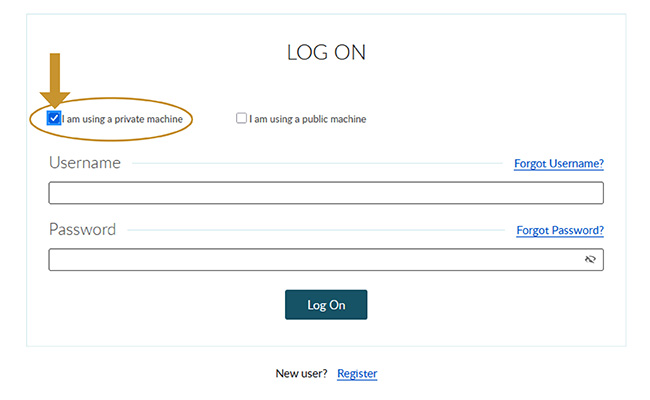
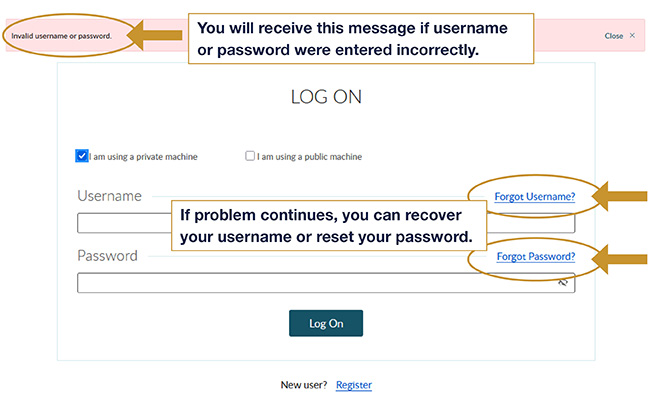
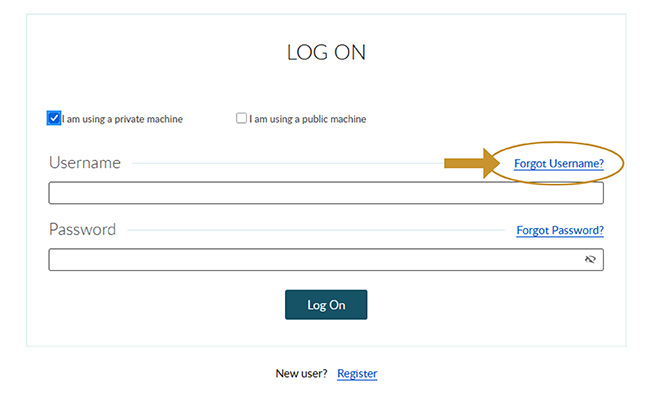
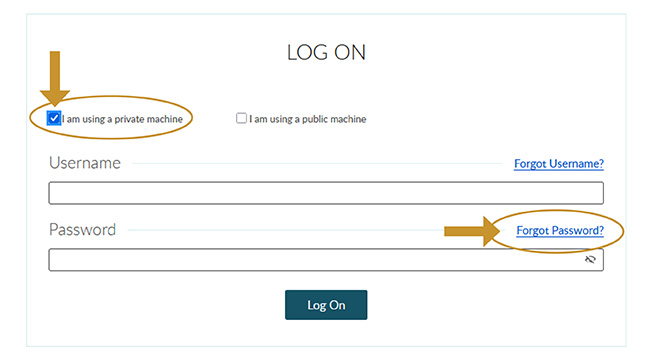
If you have forgotten your password or would link to reset your password, you can do so by clicking on FORGOT PASSWORD?. If you do not see the link, make sure that the “I am using a private machine” is checked.

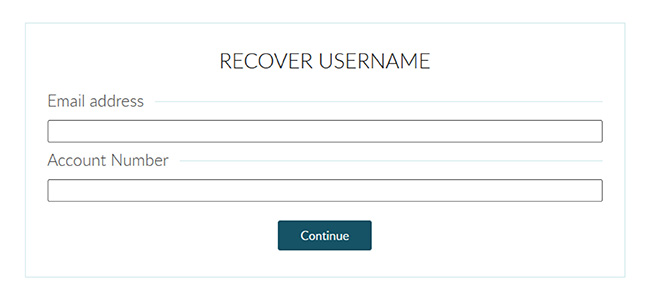
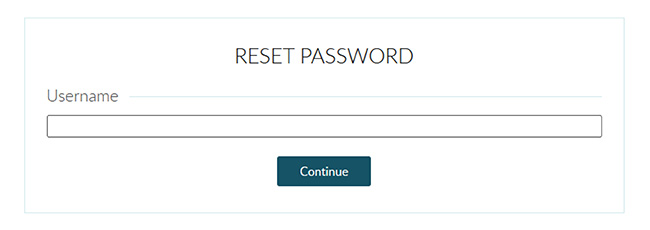
After you click on FORGOT PASSWORD? you will see the following screen to start the reset process:

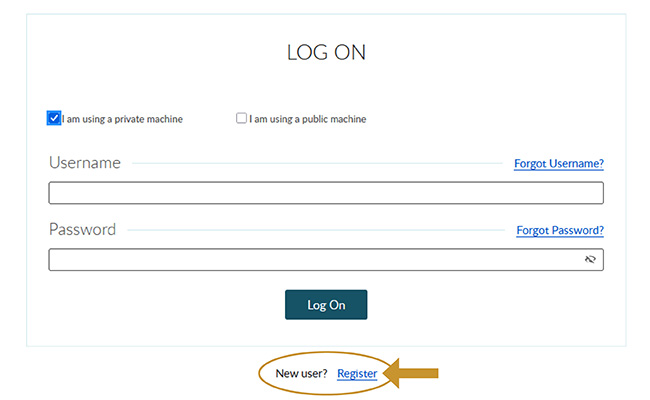
If you type in an invalid Username or the Username does not exist, you will receive the message below. Remember, Usernames are NOT case sensitive. If you have not previously registered your account, please click the Register link on the login page to self-enroll. For help in registering your account, please click here to access the Self-Enrollment Guide.

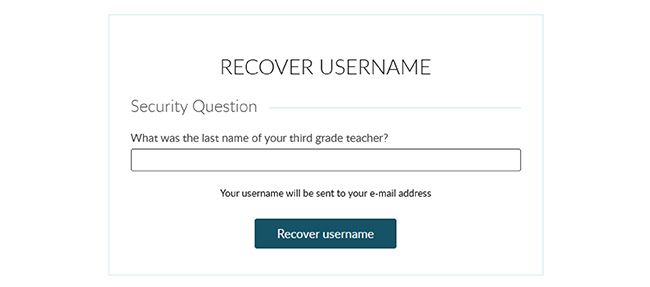
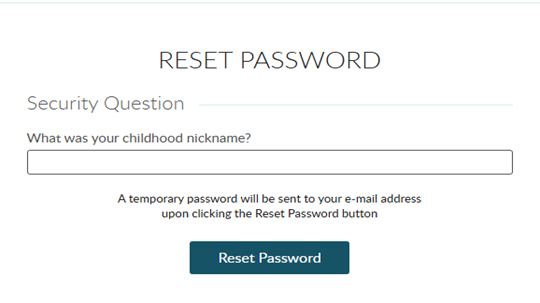
Once you enter the correct Username and click continue, you will be prompted to answer a security question.

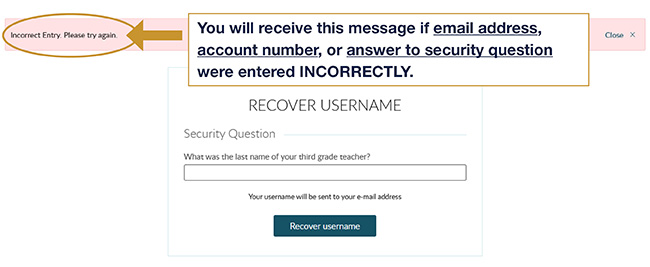
If you enter an incorrect answer to the Security Question you will receive the following message:

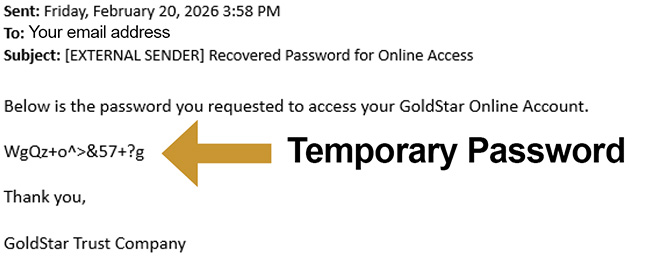
Once you answer the security question correctly, an email will be sent to you with a temporary password.

Click on the LOGIN link in the top right-hand corner of the web page.

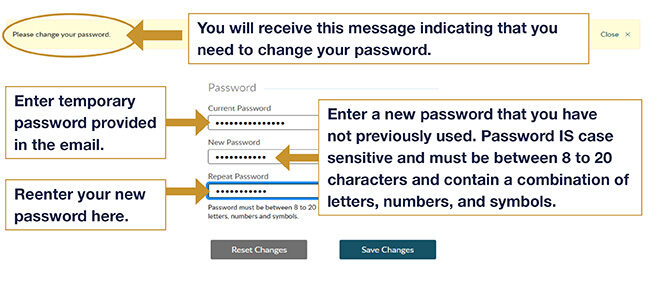
You will then receive a message that your password needs to be changed. The temporary password provided in the email is a very complex sequence of capital and lower case letters, numbers, and symbols (ex. WgQz+o^>&57+?g). It would be best to copy the temporary password from the email and paste it into the Current Password box to make sure it matches exactly.
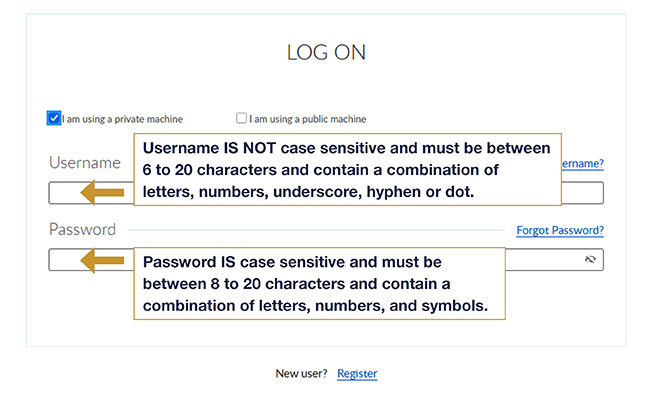
In the New Password box, enter a new password that has not been associated with your account previously. Passwords must be between 8 to 20 characters and contain a combination of letters, numbers, and symbols.

You are NOT able to use the exact same password that you have used in the past. If you do enter a password that has been associated with your account before, you will get the following message:

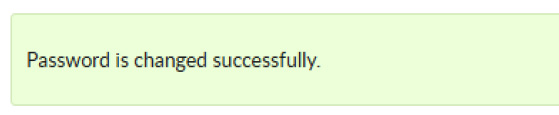
Once you enter an acceptable new password, you will receive the following message:

You will be immediately logged into your account.